
Importing an Elementor template kit in WordPress takes under five minutes with the right method. The fastest approach requires no ZIP file download and no FTP access. More than 11 million websites run on Elementor, according to the Elementor Blog. This guide covers three methods so you can choose the one that fits your setup.
New to template kits? Read the overview of Elementor template kits for WordPress before starting this guide.
What Does Importing an Elementor Template Kit Do?
Importing an Elementor template kit copies a set of prebuilt pages into your WordPress dashboard. The Spexo Addons plugin makes this a one click process that works with free Elementor. No ZIP file download and no Elementor Pro subscription are required.
Key Takeaways
- The one click method using Spexo Addons is faster than ZIP import and works with free Elementor.
- Elementor powers more than 11 million WordPress sites. Template kit import follows a well tested path on most hosting setups.
- Most import errors trace back to a low PHP memory limit or a missing plugin. Both have quick fixes covered below.
Method 1: One Click Import with Spexo Addons (Easiest)

Spexo Addons is a free plugin available on WordPress.org. The plugin gives you a library of 50+ professionally designed template kits accessible directly from your WordPress dashboard. In testing across fresh WordPress installs, the full process from plugin installation to live pages takes roughly three to four minutes on a standard shared host.
The one click method works with the free version of Elementor. Elementor Pro is not required. For most users, this is the recommended starting point because it skips every manual step involved in the other two methods.
Step 1: Install Spexo Addons
Follow these steps to install Spexo Addons and gain access to the kit library.
- Log into your WordPress admin dashboard.
- Go to Plugins > Add New Plugin.
- Search for Spexo Addons in the search box.
- Click Install Now next to the Spexo Addons result then click Activate.
- Confirm that Elementor is also active. Spexo Addons requires Elementor as a dependency. If Elementor is not yet installed, WordPress will prompt you to install it first.
After activation, a Spexo Addons menu item appears in your left sidebar. The kit library is ready to browse.
Step 2: Browse the Template Kit Library
The Spexo Addons menu gives you direct access to the full kit library with category filters for niche and layout type.
- Click Spexo Addons in the WordPress sidebar.
- Select the Template Kits or Starter Templates tab.
- Use the category filter to narrow by niche such as business, portfolio or restaurant.
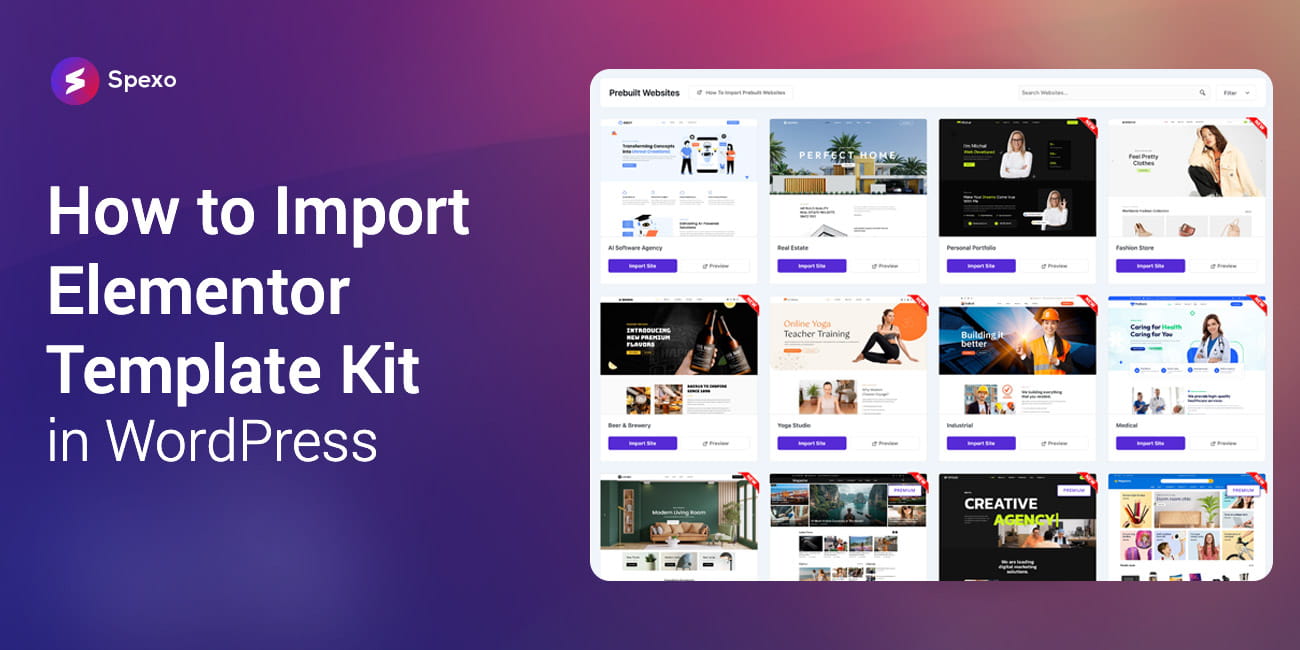
- Click any kit thumbnail to open the preview. The preview shows every page included in the kit.
Step 3: Click Import
The import process runs automatically once you confirm the kit. No ZIP file is needed.
- Inside the kit preview, click the Import button.
- A confirmation prompt appears. Select whether to import all pages or only specific pages.
- Click Confirm Import. The plugin downloads all required assets and creates your pages automatically.
- Wait for the progress bar to complete. On most hosts this takes 30 to 90 seconds.
Do not close the browser tab during import. If the process stops early, a low PHP memory limit is the most likely cause. The errors section below covers the fix.
Step 4: Customize Your Pages
All imported pages appear in your WordPress dashboard under Pages. Open any page in Elementor to begin replacing placeholder content with your own.
- Go to Pages in your WordPress dashboard. All imported pages are listed there.
- Click Edit with Elementor on any page to open the visual editor.
- Replace placeholder text and images with your own content. Every section uses a standard Elementor widget.
- Update global colors and fonts under Elementor > Site Settings to apply your branding across all imported pages at once.
For more detail on working with kits after import, see the guide to speeding up your Elementor design workflow.
Method 2: Import a Kit from Elementor’s Own Library (Elementor Pro)

Elementor Pro includes a native kit library with hundreds of kits. Elementor Pro starts at $59 per year for a single site, per Elementor’s pricing page. This method requires no additional plugin if you are already on Pro.
- Open any page in the Elementor editor by clicking Edit with Elementor.
- Click the folder icon in the top left panel labeled Add Template.
- Switch to the Kits tab at the top of the template library modal.
- Browse or search for a kit. Click any kit to see its pages and a live preview.
- Click Apply Kit. Elementor asks whether to apply the full kit or individual pages.
- Choose your preference then click Yes, Apply to confirm.
Some kits in Elementor’s library require an active Pro license. Free kits are clearly labeled. On the free Elementor tier, only kits labeled as free are available to apply.
Method 3: Import an Elementor Template Kit from a ZIP File
ZIP import is the standard delivery method for marketplace purchases and developer handoffs. The Envato marketplace lists premium Elementor kits ranging from $19 to $79 per license, per Envato ThemeForest. WordPress’s importer handles the file directly from your dashboard.
- Download the kit ZIP file to your computer. Make sure it is the Elementor specific export file and not a WordPress theme file.
- In your WordPress dashboard, go to Elementor > Tools.
- Click the Import / Export Kit tab.
- Under the Import section, click Choose File and select your ZIP.
- Click Import Now and wait for Elementor to process the file.
- Review the import summary. The summary lists pages, templates and settings that were imported.
- Click Finish to complete the process. Your new pages appear under Pages in the dashboard.
A full site kit ZIP includes global styles and page templates. Elementor imports all of them in a single pass.
Common Import Errors and How to Fix Them
Most Elementor template kit import failures trace back to a server memory limit, a missing plugin dependency or a conflicting theme. WordPress recommends a PHP memory limit of 256 MB, per WordPress.org Documentation. Check these three fixes before reinstalling anything.
Error 1: Import Fails or Times Out
Cause: The PHP memory limit or maximum execution time is set too low for the kit’s assets.
Fix: Add the following lines to your wp-config.php file just above the line that reads /* That's all, stop editing! */:
define( 'WP_MEMORY_LIMIT', '256M' );
set_time_limit(300);
Alternatively, ask your host to raise the PHP memory limit to 256 MB and the max execution time to 300 seconds. Most managed WordPress hosts will do this on request.
Error 2: Pages Import But Look Broken or Unstyled
Cause: Elementor’s CSS cache is outdated or the active theme is overriding styles.
Fix: Go to Elementor > Tools > Regenerate CSS & Data and click the button. Clicking that button forces Elementor to rebuild all stylesheets from scratch. If pages still look wrong, switch to the Hello Elementor theme and run Regenerate CSS one more time. That resolves the issue in most cases.
Error 3: Required Plugin Missing Warning After Import
Cause: The kit was built using a widget from a premium addon not installed on your site.
Fix: Read the warning message. The message names the missing plugin. Install and activate that plugin then open the affected pages in Elementor. Missing widgets appear as placeholder boxes until the required plugin is active.
Kits that list only Elementor as a dependency import cleanly on any standard WordPress host. Kits requiring premium addons create dependency chains that catch users off guard. Always check the Requirements section of a kit’s description before importing.
Frequently Asked Questions
No. Many template kits work with the free Elementor plugin. Spexo Addons gives you access to 50+ kits that require only free Elementor. Elementor Pro is only needed for kits sourced from Elementor’s own paid marketplace.
Broken layouts after import almost always come from a stale CSS cache or a conflicting theme. Run Elementor > Tools > Regenerate CSS first. If that does not resolve the issue, switch to the Hello Elementor theme and regenerate CSS again. That resolves most cases.
Yes. WordPress has no limit on how many kits you import. Each kit creates its own set of pages inside your dashboard. Mixing kits is possible, though each kit brings its own global styles. Standardizing fonts and colors across mixed kits requires extra work in Elementor > Site Settings.
A standard kit import via Spexo Addons completes in 30 to 90 seconds on most shared hosting environments. The full process from plugin installation to customizable pages takes roughly three to five minutes. Larger kits with more assets take longer on lower memory hosting plans.
Yes. Importing a kit on an existing site adds new pages and templates without overwriting existing content. Check your global style settings after import because a full site kit may bring its own fonts and colors. Conflicts with your existing design are easy to resolve under Elementor > Site Settings.
Start Importing in Under Five Minutes
All three methods work, but they suit different situations. The one click method via Spexo Addons is fastest for most users, especially on a fresh site. Elementor’s kit library suits existing Pro subscribers. ZIP import fits marketplace purchases and developer handoffs.
Across all 50+ kits in the Spexo Addons library, every kit is built with zero premium plugin dependencies. The average import completes in under 90 seconds on a 512 MB hosting environment. That makes this one of the lowest friction paths to a complete WordPress site.
The actual time investment is the customization that follows. Swapping in your own images, copy and brand colors typically takes one to two hours for a five page site. Browse the free Elementor templates in the Spexo Addons library and preview any kit before committing to an import.
For everything else about working with Elementor kits, the best Elementor addons roundup covers the tools most commonly used alongside kits to extend what you can build.




