Custom Post Archive Layouts in Elementor with Spexo Site Builder
This guide will walk you through the process of creating a custom archive template for post listings using the Site Builder module in Spexo Addons.
With Spexo Addons, you can design completely custom layouts for various parts of your WordPress site — including archives, single posts, single products, headers, footers, search results, and more — all without writing a single line of code. This ensures your site remains consistent with your brand and offers a seamless user experience across all pages.
For detailed information on the Site Builder module, please refer to the documentation.
How To Build A Custom Post Archive Layout #
Follow these step-by-step instructions to build your custom post archive layout using the Site Builder.
1. Access Site Builder
Navigate to your WordPress Dashboard and go to:
Spexo Addons → Site Builder

2. Create a New Archive Template
- Click on the Post Archive tab.
- Then click the Create Archive Template button.

3. Name Your Template
A popup will appear asking you to enter a template name.
Type a meaningful name (e.g., “Blog Archive Layout”) and click Create Template.

Set Display Conditions for Post Archive Template #
You can create multiple archive templates for different taxonomy archives. Display conditions ensure that each layout is applied exactly where it’s needed.
4. Choose Where the Template Will Display
Once the template is created, the Display Conditions popup will appear.
Choose to apply it to all archives or set a specific target where you want the template to display, then click Save Conditions.

Want to learn more about how display settings work? Check out our Site Builder Display Settings documentation.
Design Your Post Archive Layout #
After saving the display conditions, the editor will open.
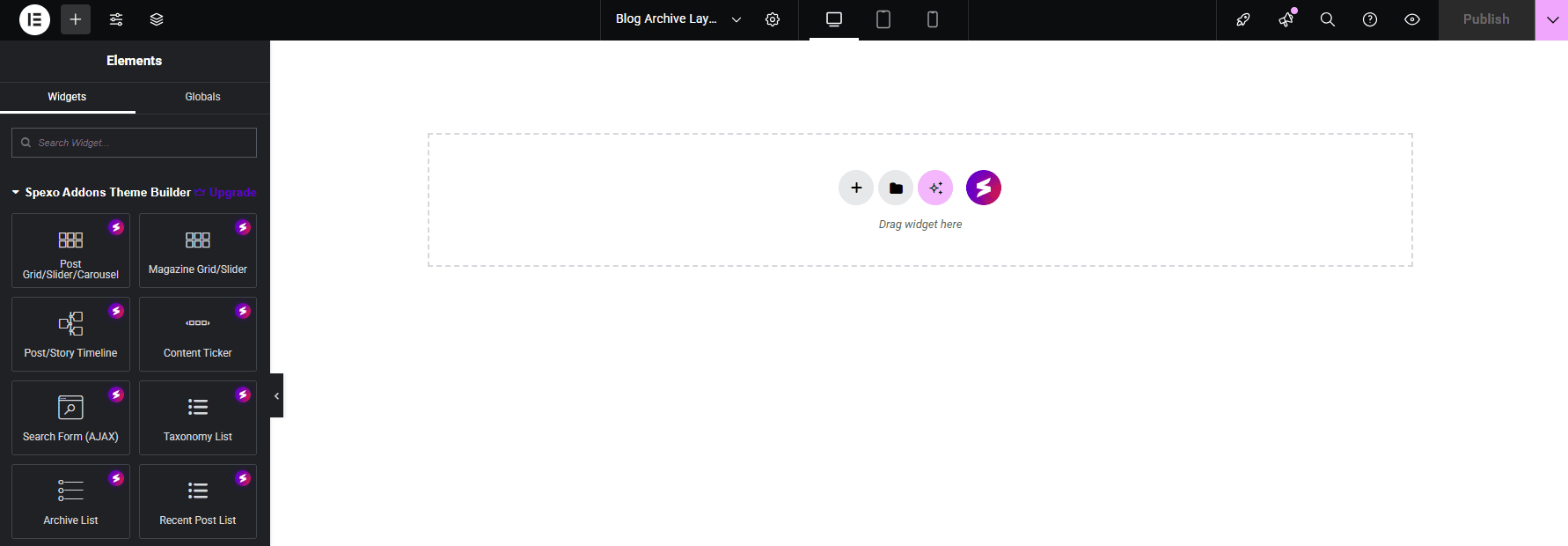
5. Use widgets from the Spexo Addons – Theme Builder category to build your single post layout. Some commonly used widgets include:
- Post Title
- Post Thumbnail
- Post Content
- Post Navigation (previous/next post links)
- Post Excerpt
- Author Box
- Post Comments
- (And other useful post-related widgets)
Arrange and style these widgets to match your design preferences and branding.
6. Publish Your Template
Once your design is ready, click the Publish button to save and activate your Post Archive Template.

Post Archive Template Example #
Below is a comparison of how a post archive appears with and without using the Site Builder template:
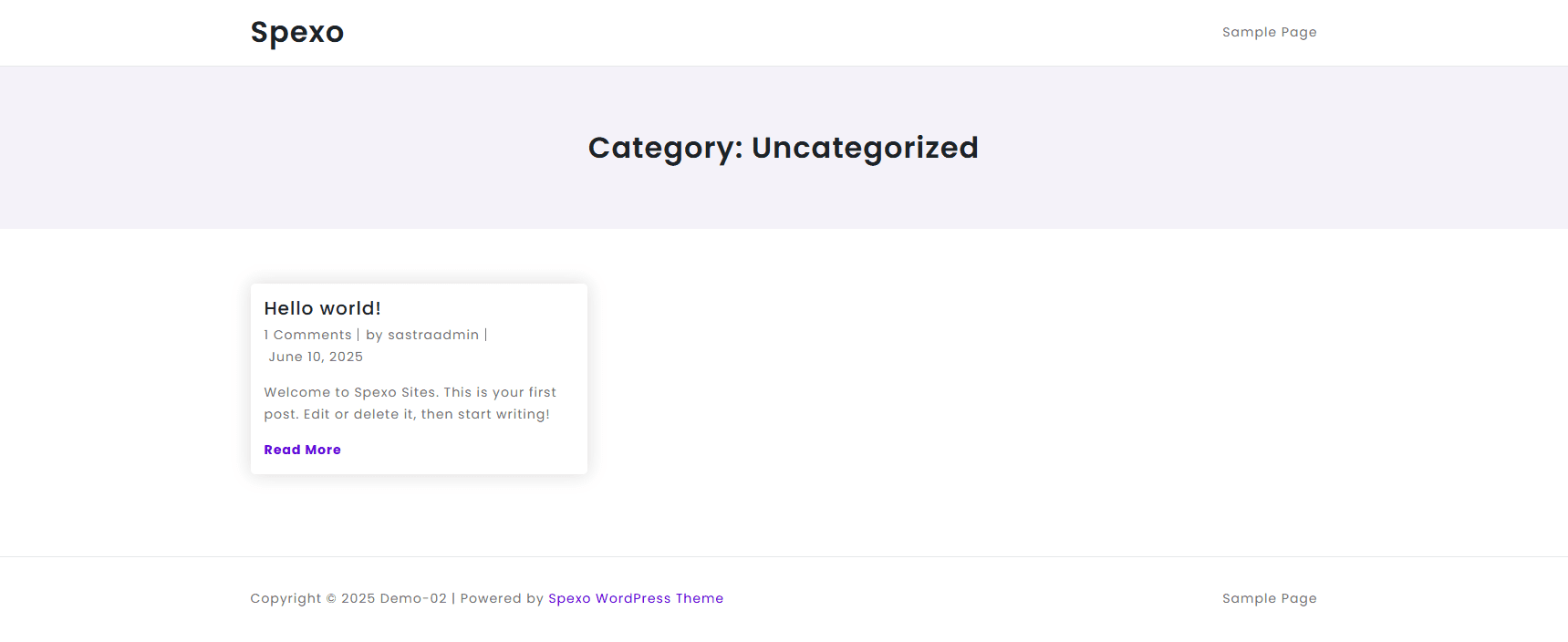
Without Site Builder:
The archive page uses your theme’s default layout, which may offer limited flexibility in layout and design.
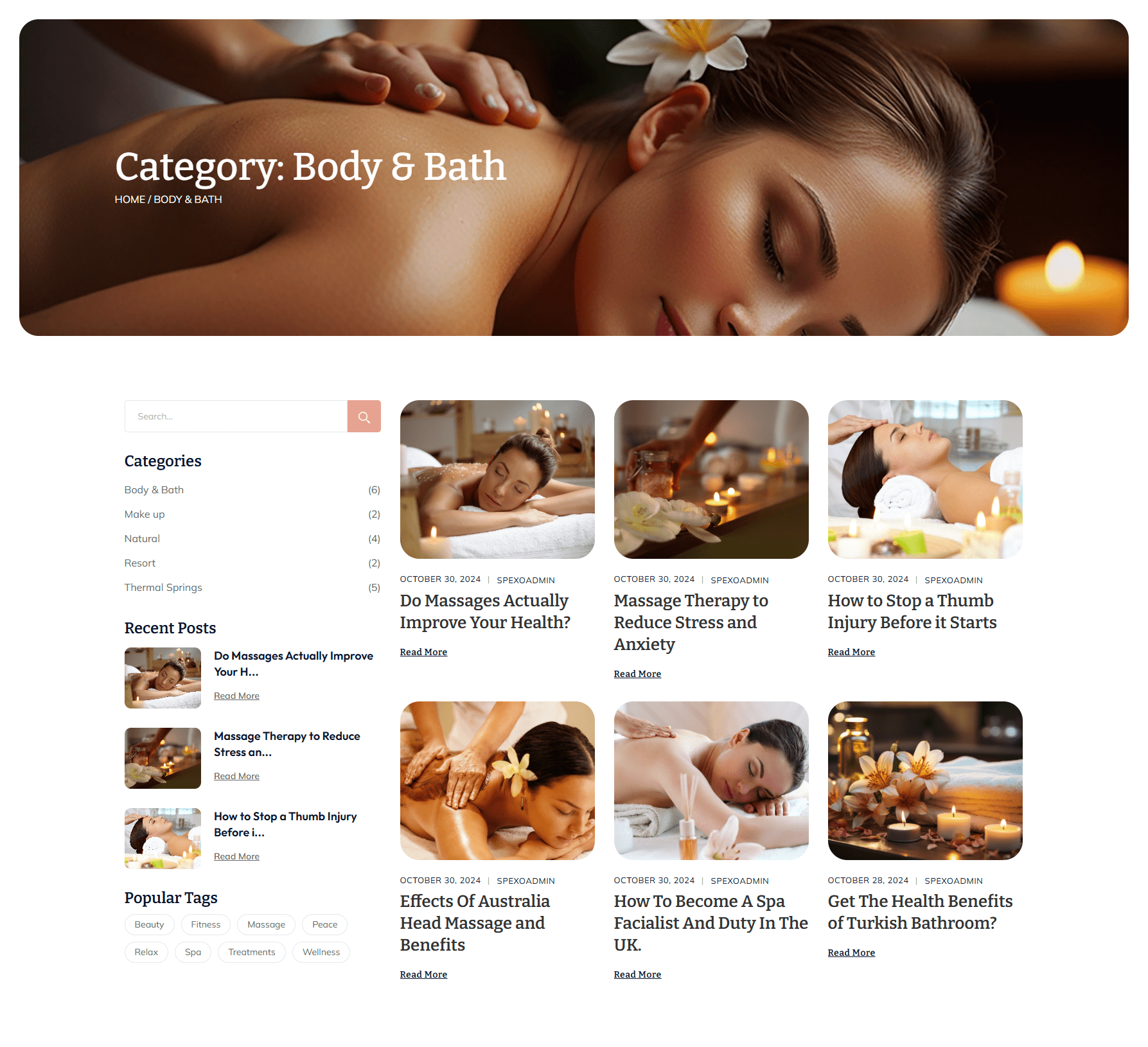
With Site Builder:
You can create a fully custom archive layout using Spexo Addons, giving you complete control over post listing structure, grid style, filters, sidebars, and more.
You can find this post archive page on the Spa Elementor Website for a live example of the layout in action.
How to Edit an Existing Post Archive Template #
Need to make changes to your current archive layout? Here’s how:
✓ Steps –
- Go to Spexo Addons → Site Builder and click the Post Archive tab.
- Hover over the template you want to edit, then click Edit Template to make changes.
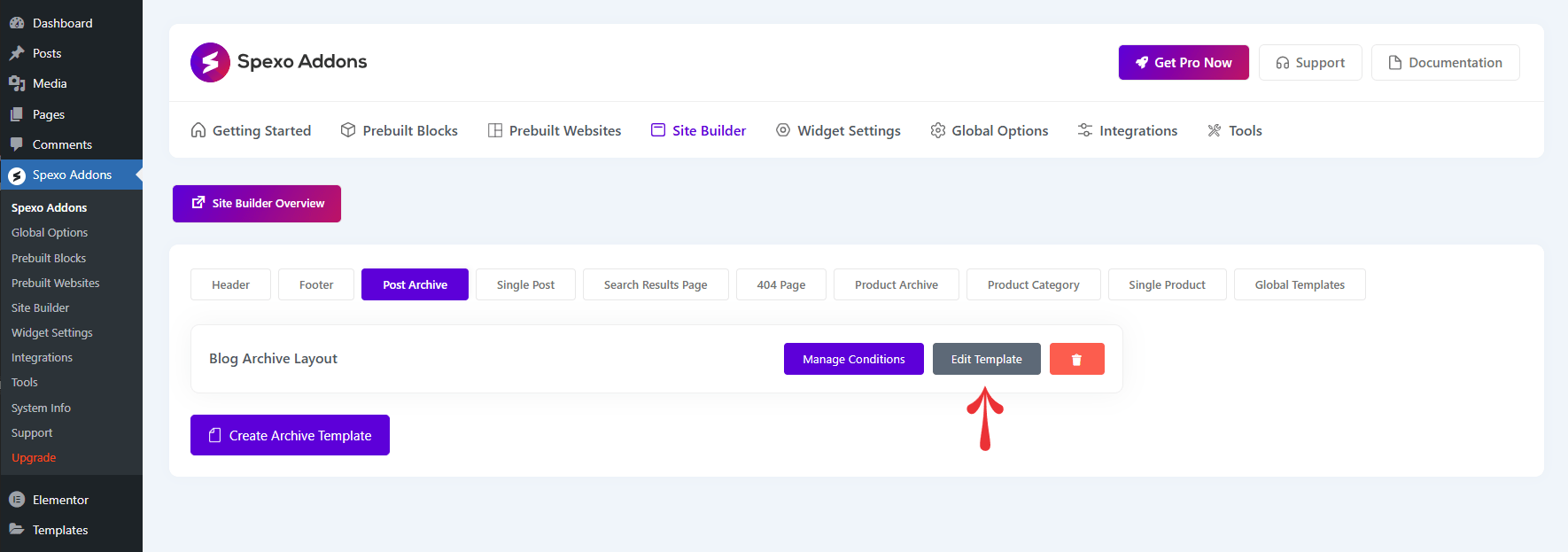
From there, you can easily update the layout, add or remove widgets, and republish with your changes.
If you run into any issues or need help creating your post archive template, feel free to contact our support team — we’re always here to help!