How to Build a Custom WooCommerce My Account Page
The My Account Page widget helps you build a custom WooCommerce account dashboard with Elementor. Customers can view orders, downloads, addresses, account details, and other account sections inside a custom page layout.
This widget is useful when you want more control over the design and layout of the WooCommerce account area. It lets you style the account navigation and content sections without editing WooCommerce templates.
The widget is commonly used when creating a custom WooCommerce account page with Elementor.
Part of WooCommerce Elementor Widgets #
The My Account Page widget is part of the WooCommerce widget collection included with Spexo Addons. These widgets help you design WooCommerce pages and account layouts directly inside Elementor.
When to Use the My Account Page Widget #
Use this widget when you want to replace the default WooCommerce account page with a custom Elementor layout.
This widget works well alongside the Cart Page Widget and pages that use the Checkout Page Widget to create a complete WooCommerce customer flow.
Requirements #
Before using the My Account Page widget, make sure the required setup is complete.
- WooCommerce plugin installed and activated
- Spexo Addons Pro installed and activated
- A page created for the WooCommerce account dashboard
- WooCommerce My Account page assigned in WooCommerce settings
How To Set Up WooCommerce My Account Page Elementor #
First, make sure that WooCommerce is installed and configured on your website.
To use the My Account Page widget, you need to replace the default WooCommerce My Account page with another page of your choice. You can create a new page and assign it as the WooCommerce My Account page.
Go to WooCommerce → Settings → Advanced from your WordPress dashboard. From there, select your preferred page in the My Account Page option and save the changes.

Basic preparations #
Before you begin, make sure you have installed and activated Spexo Addons Pro on your website. Without Spexo Addons Pro, you cannot use this widget.
Go to Spexo Addons → Widget Settings. Search for My Account and enable the widget from the WooCommerce widgets list.

How to Activate My Account Page #
After enabling the widget, edit your WooCommerce My Account page with Elementor.
Search for the My Account widget under the Elementor widgets panel and drag it into your layout.
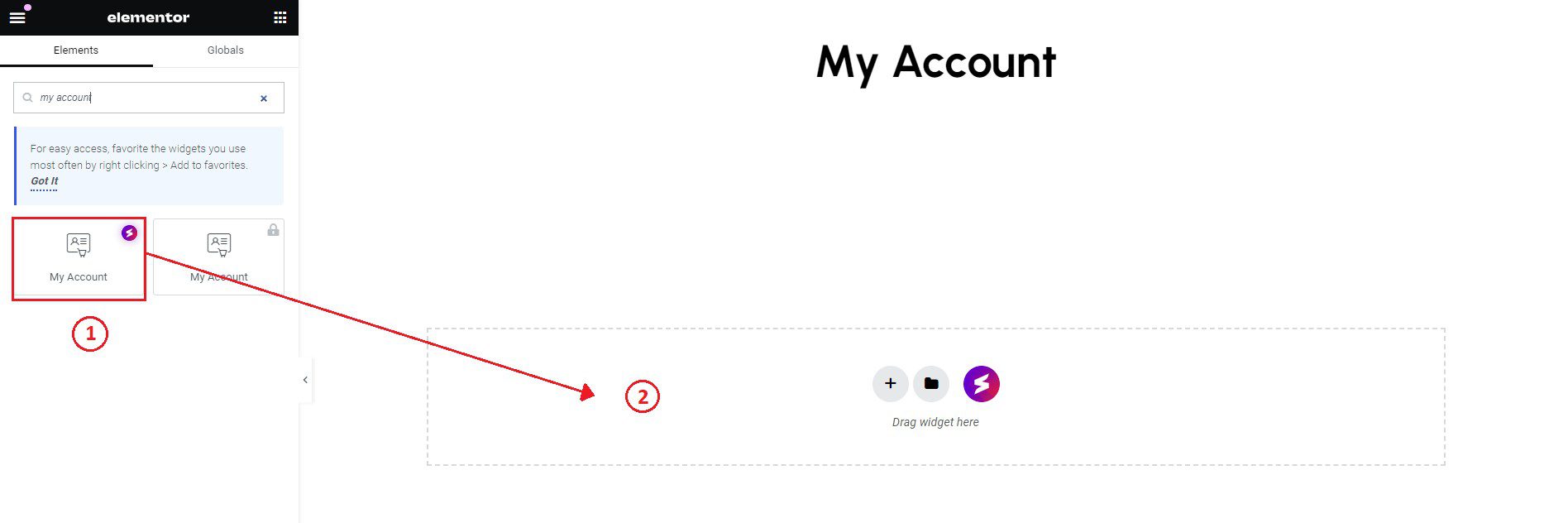
After completing this step, the widget will be added to your account page layout.
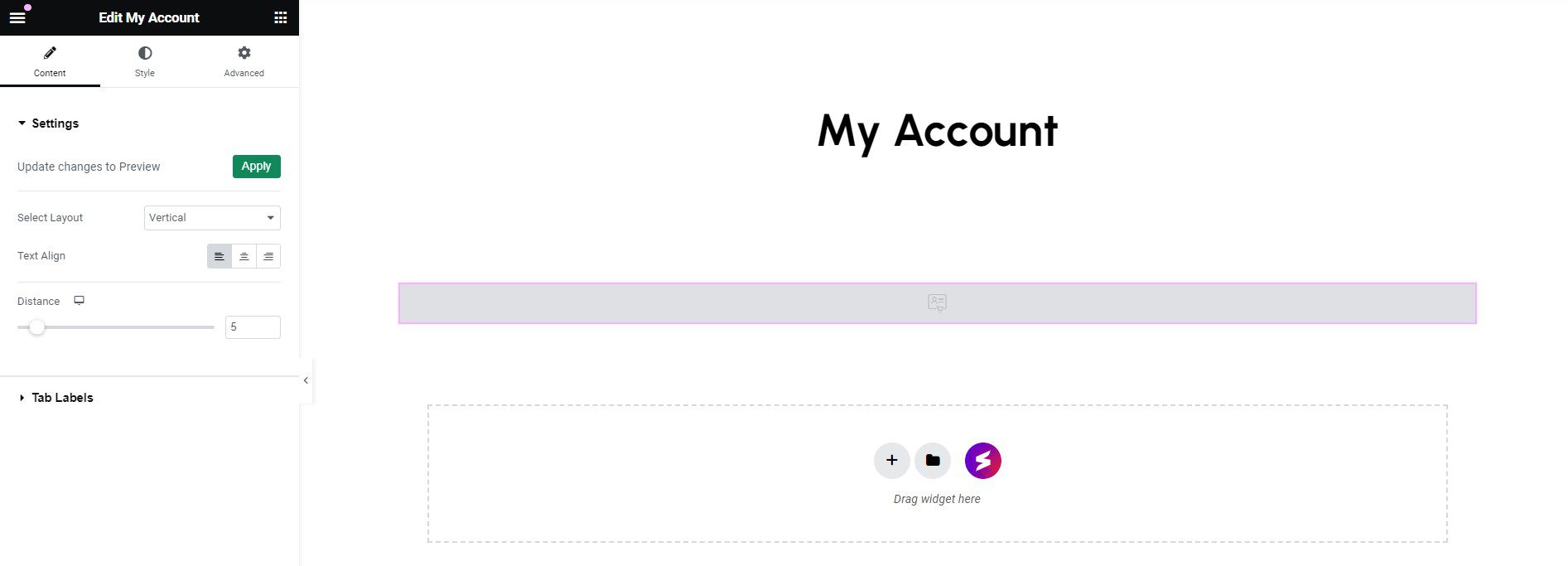
Note: The My Account Page will display properly on the frontend. The full design may not appear exactly the same inside the Elementor editor preview.
How to Configure the Content Settings #
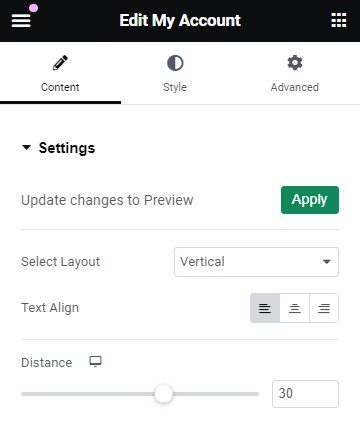
Under the Content tab, you will find the Settings and Tab Labels sections to configure the My Account page.
Settings #
From this section, you can choose the layout style and adjust text alignment. You can also use the distance slider to control spacing for different devices.
Tab Labels #
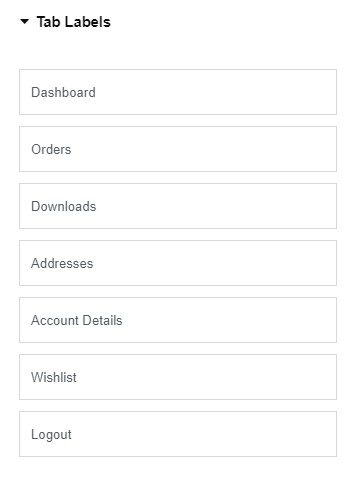
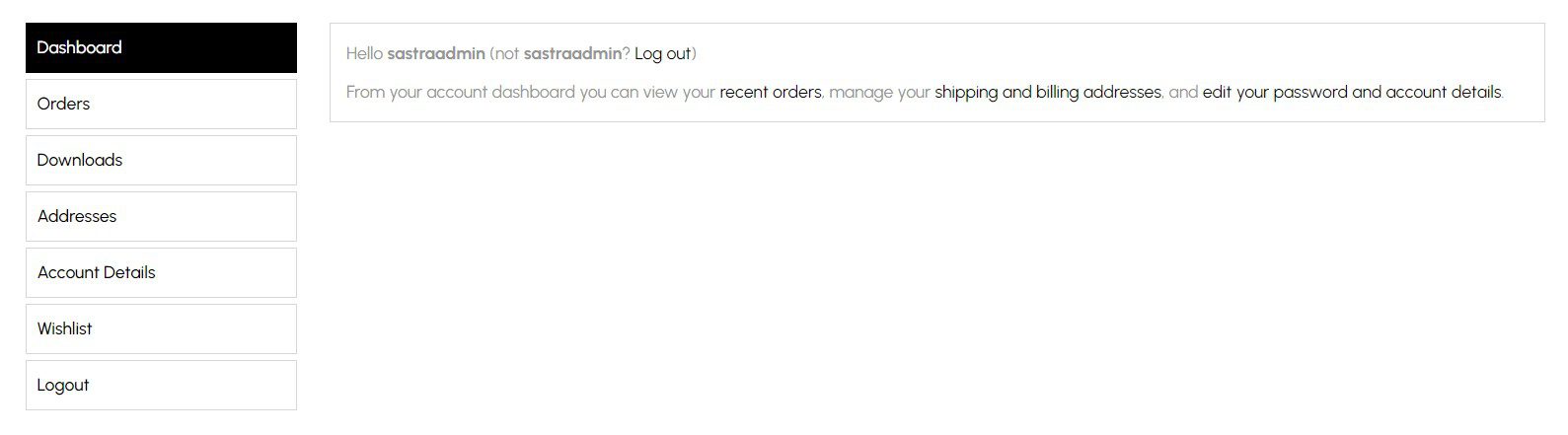
From this section, you can change the tab names for Dashboard, Orders, Downloads, Addresses, Account Details, Wishlist, and Logout.
Click to see Live Demo #
You can preview the widget layout in a live example to better understand how it appears on the frontend.
How to Style My Account Page #
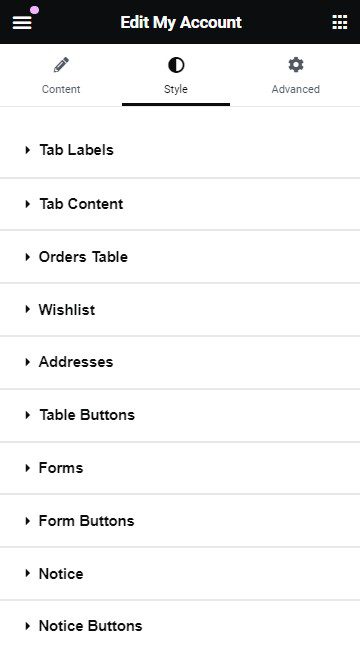
To customize the My Account Page design, open the Style tab in Elementor.
Tab Labels #
From the Tab Labels section, you can set tab label color, background color, border color, and typography for normal, hover, and active states. You can also adjust transition duration, padding, margin, and width.
You can further style the border and border radius to match your account page design.

Other Styles #
From the Other Styles section, you can customize the appearance of Tab Content, Orders Table, Wishlist, Addresses, Table Buttons, Forms, and Form Buttons.
You can also style Notice and Notice Buttons from this section.
Final Outcome #
By following these steps, you can create a custom WooCommerce My Account page that matches your site design and improves the customer experience.
Common Issues and Fixes #
If the account dashboard does not display correctly, confirm that the page is assigned as the WooCommerce My Account page in WooCommerce settings.
If the widget does not appear inside Elementor, review the widget enable settings and confirm the widget is activated.
Frequently Asked Questions #
Can I customize the WooCommerce account dashboard layout? #
Yes. The My Account Page widget allows you to design the entire dashboard layout using Elementor.
Can customers manage orders and addresses? #
Yes. The widget displays all default WooCommerce account sections including orders, downloads, addresses, and account details.
Can I style the account page design? #
Yes. Elementor style settings allow you to customize typography, colors, and layout spacing.
If you face any difficulties, feel free to contact our support team for further assistance.